

How to Download San Antonio de Padua Church App
Click on the appropriate iOS icons to download SADP Church App

Apple

How to create an app profile
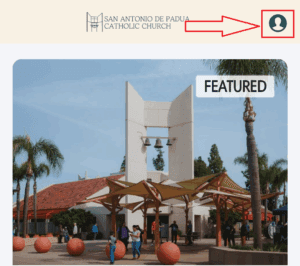
Open the San Antonio de Padua custom app.
If it is your first time opening San Antonio’s app, you will be asked to set your Location and Notification settings before being given the option to create an account.
- Tab on the profile icon on the top right corner
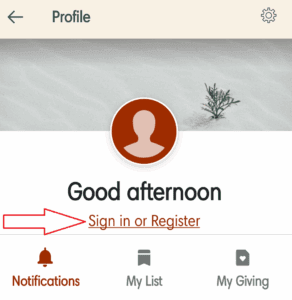
- Click “Sign in or Register”
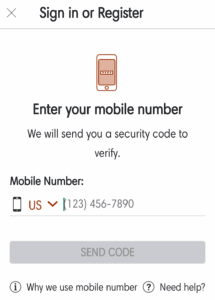
- On the next screen, enter your mobile phone number
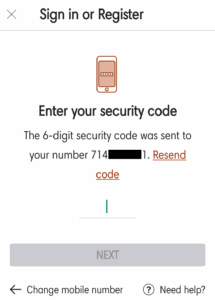
- Input the security code you receive, and click “Next.”
- If the mobile number is recognized as a verified mobile number for an existing Pushpay account, you will then be logged in, and see a ‘Welcome ____!’ message.
- If the mobile number is not recognized, or is unverified, additional information such as name and email address will be required.
Congratulations, your profile has been created!
FAQs
Can I create an app profile from my iPad if I don’t have a mobile phone?
No, app profiles cannot be created from an iPad, without a mobile number. One possible workaround would be to create a free Google Voice number that is linked to your Google account, and linked to the phone number of a friend or family member.
Can I create app profiles for my kids in the app?
Because creating an app profile within your organization’s app require a phone number to be entered and verified (via a texted security code), parents cannot create app profiles for their children via the app, unless those children have separate phone numbers, and the parent has access to the child’s phone (to verify the profile creation text). If you want to create ChMS profiles for your children,